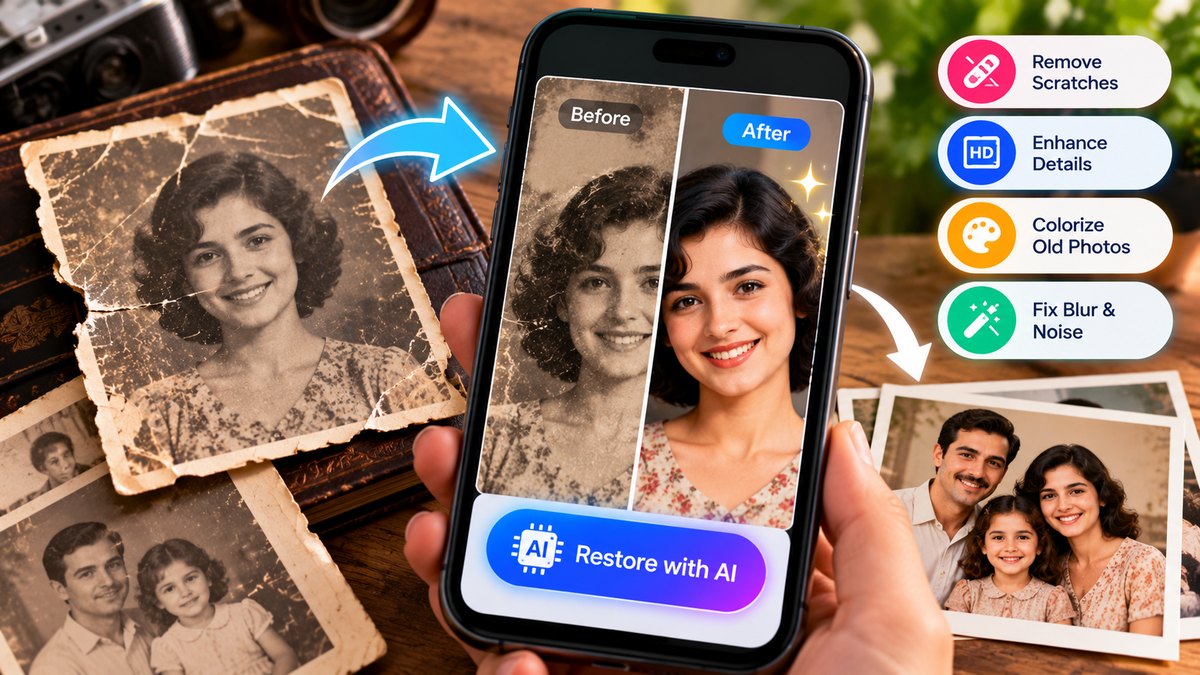
Old photographs preserve moments that can never be recreated. A wedding portrait of your grandparents, a childhood picture, or a family photograph taken decades ago may hold memories that become more valuable with time. Unfortunately, old photographs can gradually fade, develop scratches, turn yellow, or lose important details because of poor storage and repeated handling.
Fortunately, modern artificial intelligence tools make it easier to improve damaged photographs without requiring advanced photo-editing skills. With the right approach, you can repair minor imperfections, improve clarity, correct faded colors, and even add realistic-looking color to black-and-white pictures.
However, there is something important to understand before getting started: AI photo restoration does not always recover the exact original details. When information has disappeared completely, an AI model may generate a convincing replacement rather than reproduce what was genuinely present in the original image.
This guide from biographypadhe.com explains how AI photo restoration works, how to prepare old photographs, which steps to follow, and how to preserve the original appearance of important family memories.
What Is AI Photo Restoration?
AI photo restoration is a process that uses artificial intelligence to improve the appearance of old, faded, blurry, or damaged photographs.
Traditional photo editing often requires manually adjusting brightness, contrast, sharpness, and color. Repairing scratches or reconstructing damaged sections can also require considerable time and experience.
AI-powered tools simplify many of these tasks by analyzing the image and identifying patterns associated with common types of damage. Depending on the software, the technology may help reduce noise, improve facial clarity, correct color shifts, remove small imperfections, or increase image resolution.
For example, a photograph from the 1970s might have a yellowish appearance, visible dust marks, and slightly blurred faces. An appropriate restoration tool may correct the color, reduce the visible marks, and improve the apparent sharpness.
The result depends on the original photograph, the severity of the damage, and the capabilities of the selected tool. A moderately faded photograph will generally provide more useful information for restoration than an image in which an entire face or section has disappeared.
What Problems Can AI Fix in Old Photographs?
Before choosing a restoration method, it helps to identify the type of damage affecting your photograph.
1. Faded and Discolored Images
Older printed photographs may develop yellow, brown, or reddish tones because of aging, storage conditions, and changes in photographic materials.
AI-assisted editing can help correct these color shifts and improve the balance between highlights, shadows, and midtones. A faded image may become easier to view, with improved contrast and more natural-looking tones.
However, restoring the original colors exactly may be impossible if the original color information has been lost.
2. Scratches, Dust, and Small Marks
Dust, fingerprints, surface scratches, and minor stains frequently appear in scanned photographs.
Some restoration tools can recognize these imperfections and attempt to repair the affected areas. Small marks may disappear with little visible change to the rest of the image.
Larger scratches require more care because they may cross a person’s face, clothing, or other important details. If a scratch covers information that no longer exists in the image, the software has to estimate what belongs there.
3. Blurry Faces and Soft Details
Old photographs may appear blurry because of the original camera, movement during exposure, poor printing quality, or deterioration over time.
AI enhancement can sometimes make faces appear sharper and improve the visibility of features. This can be particularly helpful when preparing a photograph for printing or digital sharing.
Nevertheless, increased sharpness does not necessarily mean increased historical accuracy. AI may change the shape of the eyes, nose, mouth, or skin texture while creating a clearer-looking face.
4. Torn or Damaged Sections
A photograph with a small tear or missing corner may be repairable with generative editing tools.
These tools estimate the surrounding patterns and fill the damaged area with content that fits the image. Results can look convincing, especially when the missing section contains a simple background.
Severely damaged portraits are more difficult. If a large part of a person’s face is missing, no software can reliably determine every original detail from the remaining image alone.
5. Black-and-White Photographs
AI colorization adds estimated colors to monochrome images. It may produce convincing skin tones, clothing colors, and backgrounds based on visual patterns.
However, a black-and-white photograph does not contain enough information to establish the original color of every object. A blue dress, for instance, might be colorized as green or another plausible shade.
Treat colorized photographs as interpretations unless you can verify their colors using other photographs or reliable historical information.
How to Restore Old Photos With AI Step by Step
You can follow this process even if you have never used professional photo-editing software.
Step 1: Create a Good Digital Copy
The quality of your starting image strongly affects the restoration result. Before uploading a photograph to an AI tool, create the clearest digital copy possible.
A flatbed scanner is a good option for valuable printed photographs because it provides consistent lighting and minimizes perspective distortion. For important prints, a scan at 600 DPI can preserve useful detail, although smaller or less important images may not require that resolution.
You can also use your smartphone if a scanner is unavailable.
Place the photograph on a flat, clean surface near a window or under soft, even lighting. Keep the camera parallel to the photograph so that the image does not become distorted. Avoid using the flash because reflections and glare can hide details.
Make sure your hands, phone, and other objects do not cast shadows over the image. If the print is behind glass, reflections may interfere with the photograph, so scan or photograph it without the glass whenever this can be done safely.
If a valuable photograph is tightly curled, brittle, or torn, do not force it flat. Consider consulting a professional photo conservator.
Step 2: Save the Original File
Before editing, make a duplicate of the digital image.
Keep one file untouched and use the second copy for restoration. This allows you to compare the results and return to the original whenever an AI tool produces an undesirable change.
Use clear filenames, such as family-photo-original and family-photo-restored.
For particularly important memories, keep a backup on a separate storage device or a trusted storage service. Avoid relying on a single copy of a photograph that cannot be replaced.
Step 3: Choose an AI Photo Restoration Tool
Look for an editing tool that offers the features you actually need.
A basic enhancement tool may be sufficient for improving brightness and clarity. A more advanced restoration tool may be appropriate for portraits with scratches, faded faces, or damaged sections. If you want to add color, select software that specifically supports photo colorization.
Before uploading anything, check whether the tool offers free processing, whether it places a watermark on the result, and whether a paid plan is required for high-resolution downloads.
Do not assume that every service described as free includes unlimited editing or full-quality exports. Check its current terms before spending time restoring a large collection.
Step 4: Repair the Image Before Adding Color
Start by correcting obvious problems such as poor exposure, unwanted color casts, and minor visual imperfections.
If the photograph is significantly crooked, straighten it carefully. Crop unnecessary borders only when doing so will not remove meaningful details.
Next, apply restoration or enhancement at a moderate setting. Examine the face, clothing, hair, and background rather than judging the result only by its overall brightness.
If the image begins to look artificial, reduce the strength of the enhancement or try a different tool. An overly processed photograph can look less authentic even when it appears sharper.
Step 5: Use Colorization Only When Necessary
If you are restoring a black-and-white photograph, colorization can be an optional final step.
For historically important images, consider retaining the original monochrome appearance. If you prefer a color version, compare it with the original and look for unnatural skin tones, inconsistent lighting, or colors that do not suit the photograph’s period.
Where accurate color information matters, use family records, contemporary photographs, or other reliable references instead of treating AI-generated colors as facts.
Step 6: Review the Result Carefully
Zoom in and inspect the restored photograph before downloading or printing it.
Check whether facial features remain recognizable, the background looks natural, and important objects have been preserved. Watch for invented writing, unusual fingers, excessively smooth skin, or details that appear inconsistent with the original.
If the tool changes a person’s identity or expression, undo the edit and try a less aggressive setting. You may get a more faithful result by applying basic corrections rather than asking AI to reconstruct every detail.
Finally, save the restored version separately from the original.
How to Keep AI-Restored Faces Looking Natural
Faces are among the most sensitive parts of an old photograph because even small changes can make someone look different.
Many AI tools are designed to produce visually appealing faces. When the original image is very small or blurry, the software may generate new details based on patterns learned from other images.
To reduce this risk, use these practical techniques:
- Start with the highest-quality scan available.
- Choose a restoration setting that prioritizes similarity to the original rather than maximum sharpness.
- Avoid repeated face-enhancement passes if the results become increasingly artificial.
- Compare the eyes, nose, mouth, facial shape, and expression with the original.
- Ask a family member who knew the person to review the result when appropriate.
The goal of restoring a family portrait should not always be to create a perfect-looking image. Preserving the person’s recognizable appearance and the historical character of the photograph is often more important.
Are AI Photo Restoration Tools Safe for Personal Pictures?
Privacy deserves special attention when restoring old family photographs.
Some tools process images directly on your device, while others upload them to remote servers for processing. With cloud-based services, your photograph may be transferred to another system before the restored version is returned.
Before uploading a personal picture, review the service’s privacy policy and consider the following questions:
- How long does the service retain uploaded images?
- Does it use submitted images to improve or train its systems?
- Can you delete uploaded files and generated results?
- Does the service require an account or additional personal information?
- Are the privacy terms clear about how images are processed?
Pay particular attention to photographs involving children, identification documents, private family situations, or people who may not have consented to uploading their pictures.
A tool that processes images locally may offer greater control over sensitive photographs, although you should still review how the software handles files and permissions.
For highly confidential images, avoid uploading them to an unfamiliar website simply because it promises fast or free restoration.
Common Mistakes to Avoid When Restoring Old Photos
Even a good restoration tool can produce disappointing results when it is used carelessly.
Editing the only copy: Always preserve an untouched original. This is especially important for photographs with historical or sentimental value.
Using excessive enhancement: Increasing sharpness too aggressively can create artificial textures and alter facial features.
Expecting perfect recovery: AI cannot reliably retrieve information that has disappeared completely. Missing details may be reconstructed rather than recovered.
Ignoring the quality of the scan: Reflections, shadows, low resolution, and perspective distortion can make restoration more difficult.
Trusting generated colors: AI colorization makes estimates, not verified discoveries about the colors of the original scene.
Choosing a tool without checking privacy: An attractive result is not worth exposing a sensitive photograph to unclear data-handling practices.
Replacing the original with an edited version: Keep both versions so that future restoration tools can work from the best available source.
Frequently Asked Questions
Can I restore old photos with AI for free?
Yes, some AI photo restoration tools offer free features or limited free usage. The available functions, image-quality limits, watermarks, and account requirements vary by service. Check the current conditions before selecting a tool.
Can AI restore a severely damaged photograph?
AI can sometimes reconstruct missing sections, remove visible imperfections, and improve the appearance of damaged images. However, the more information that has been lost, the greater the likelihood that the software will invent details instead of recovering the original appearance.
Can I restore an old photograph using my phone?
Yes. You can photograph or scan a print with your phone and use a compatible mobile application or web-based editor. Good lighting, a steady camera, and a clear digital copy can improve your results.
Will AI restoration change the person’s face?
It can. Certain tools generate new facial details when the source image is blurry or incomplete. Always compare the restored face with the original and choose conservative settings when preserving identity is important.
Is AI colorization historically accurate?
Not necessarily. Colorization can create a realistic-looking result, but the colors are often estimates. Use historical references or other photographs when accuracy matters.
Should I keep the original black-and-white photograph?
Yes. Keep the original file and save the restored or colorized result as a separate version. This preserves the source image and allows you to make different edits in the future.
Final Thoughts
Restoring old photographs with AI can be a useful way to preserve family memories, improve faded images, and make damaged prints easier to share. Modern tools can simplify many editing tasks, but they work best when you begin with a good digital copy and understand their limitations.
Start by scanning or photographing the original carefully. Save an untouched backup, correct basic image problems, apply restoration gradually, and review the result for changes to faces or important details. Add color only when it suits your goal, and check privacy policies before uploading personal photographs to online services.
Most importantly, remember that a visually impressive restoration is not always a historically accurate one. AI may improve the appearance of a photograph, but it cannot guarantee that reconstructed details match reality.
By combining careful preparation with thoughtful editing, you can preserve both the photograph and the memories it represents.
At biographypadhe.com, our aim is to provide practical, easy-to-understand technology guides that help readers make informed decisions and use digital tools responsibly.


