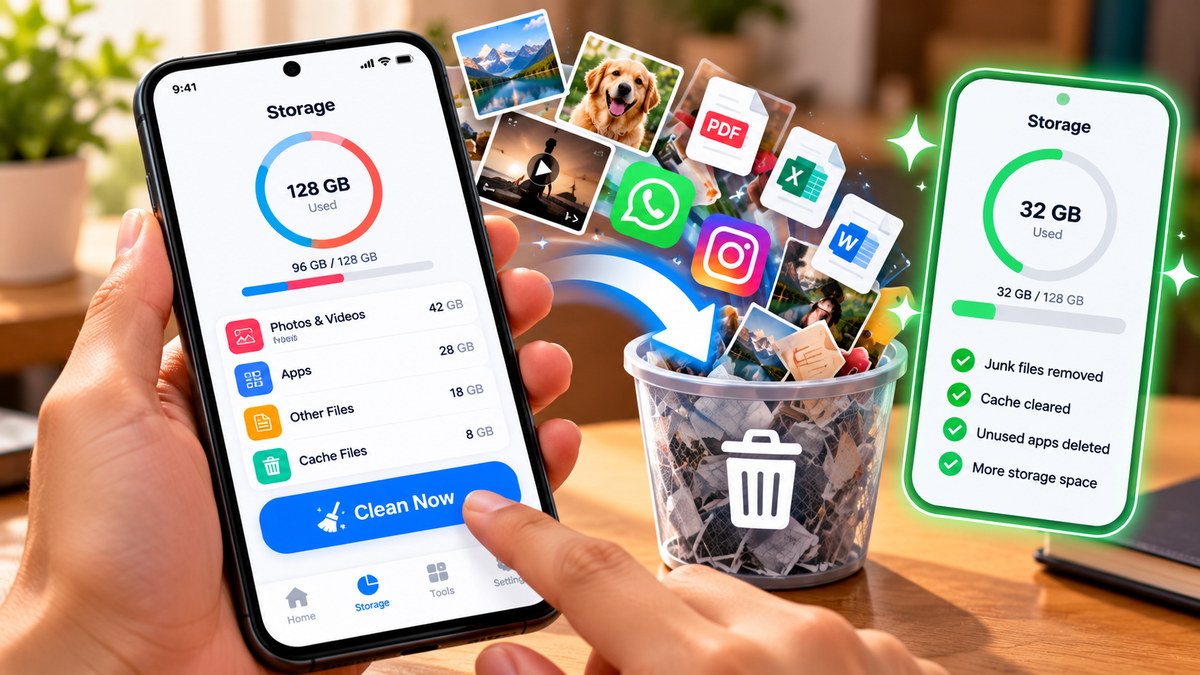
Have you ever tried to download an application, take a photograph, or record a video, only to discover that your phone has run out of space? It is a common problem, especially when a device contains years of photographs, downloaded videos, messaging attachments, and applications that are no longer used.
Cleaning your cell phone memory can help you recover storage space, install updates, and organize your files more efficiently. However, it is important to understand what you are deleting. Removing unnecessary downloads is different from clearing temporary files, and deleting an application’s data can cause you to lose important information.
In this guide, biographypadhe.com explains how to clean phone memory safely on Android and iPhone, identify files that take up the most space, and maintain enough free storage for everyday tasks.
What Does Cleaning Phone Memory Mean?
The phrase “phone memory” can refer to two different things: storage space and RAM. Understanding the difference helps you choose the correct solution.
Phone storage is where your device keeps photographs, videos, applications, documents, downloads, and other files. When storage becomes full, you may struggle to install apps, save new pictures, or download software updates.
RAM, or random-access memory, is used by your phone to run applications and manage active tasks. It is temporary working memory rather than a place where you permanently store your photographs and documents.
Cleaning storage means removing files or applications that you no longer need. Improving memory performance, on the other hand, may involve updating software, restarting the device, or troubleshooting an application that is not responding.
If your phone displays a message saying that storage is full, focus on storage management rather than repeatedly closing applications.
1. Check What Is Using Your Phone Storage
Before deleting anything, identify which categories consume the most space. This makes it easier to concentrate on large files rather than spending time removing items that take up very little storage.
On Android Phones
The exact menu names depend on the phone manufacturer and Android version, but the general process is straightforward.
- Open Settings on your phone.
- Find and tap Storage.
- Review the categories displayed, such as apps, images, videos, audio, and documents.
- Open a category to identify files or applications that occupy significant space.
- Decide which items can be safely removed or moved elsewhere.
Some Android phones also provide recommendations for deleting unnecessary files.
Google explains the available options in its official guide to freeing up storage on Android.
On iPhone
Apple provides a storage overview that shows how much space is available and how much individual applications use.
- Open Settings.
- Tap General.
- Select iPhone Storage.
- Review the storage bar and application list.
- Open an application to see which storage-management options are available.
Your iPhone may also suggest ways to save space, such as offloading unused applications or reviewing large files.
For more information, consult Apple’s guide to checking storage on your iPhone or iPad.
2. Delete Unnecessary Photos and Videos
Photographs and videos can occupy substantial storage, particularly when they are recorded at high resolution or kept on the device for years.
Instead of deleting files randomly, begin with content you are certain you no longer need.
Look for blurry photographs, accidental screenshots, duplicate images, outdated screen recordings, and videos downloaded for temporary viewing.
On Android, you can review these files through your Gallery or Photos application. On iPhone, open the Photos app and examine your library.
Before deleting important memories, make sure you have an appropriate backup. If you use a cloud service, confirm that the files have uploaded successfully and understand how deletion is synchronized across your devices.
For example, deleting a photograph from a synchronized photo library may also delete it from the cloud library and other connected devices. Do not assume that a file is backed up simply because you can see it in a photo application.
Once you have verified your backups, remove only the items you no longer want.
3. Clear App Cache Without Deleting Important Data
Applications frequently store temporary files to make content load faster. These files are commonly known as cache.
A browser may cache website images, while a social media application may store temporary media files. Over time, some applications can accumulate considerable cached data.
Clearing cache can sometimes recover storage space, particularly when a specific application is using more space than expected.
Clear Cache on Android
- Open Settings.
- Select Apps or Applications.
- Choose the application you want to manage.
- Tap Storage or Storage and cache.
- Select Clear cache, when available.
The menu names can differ between manufacturers and Android versions.
Clearing the cache removes temporary files. The application may take slightly longer to load some content the next time you open it.
Be careful not to confuse Clear cache with Clear storage or Clear data. These are different operations. Google explains that clearing an application’s storage permanently removes its local app data, so you should check the consequences before proceeding.
On iPhone, individual applications do not always provide a dedicated cache-clearing button. You may need to use the application’s own settings, remove downloaded content, or review the iPhone Storage options.
Do not install an unfamiliar cleaner application just because it promises to remove every unnecessary file.
4. Use Files by Google to Find Unnecessary Files
Android users can consider Files by Google, a file-management application that provides storage-cleanup recommendations.
Depending on the device and available features, it can help identify temporary files, duplicate files, screenshots, downloads, and applications you rarely use.
To review cleanup suggestions:
- Install or open Files by Google from its official Google Play listing.
- Open the Clean section.
- Review the suggested categories.
- Select the files you recognize and no longer need.
- Check the selection carefully before confirming deletion.
You can find the application here: Files by Google on Google Play.
Google’s official Files by Google guide explains how to browse files and use its cleanup features.
Remember that cleaning suggestions are not permission to delete everything automatically. Review the list, particularly when it includes downloaded documents, messaging attachments, or duplicate photographs that might not actually be identical in content.
5. Remove Duplicate Files and Old Downloads
Duplicate files are another source of unnecessary storage usage. You might have several copies of a photograph, multiple versions of a downloaded document, or old files saved from messaging applications.
Start with the Downloads folder and look for installation files, documents, PDFs, and media you no longer need.
Before deleting a file, open it or check its name and location if you are uncertain about its purpose.
On supported Android devices, Files by Google can identify duplicate files and mark an original copy. Review the selection before deleting anything.
Be careful with files stored in application-specific folders. Some may be needed by an application or represent the only copy of a document you intended to keep.
On iPhone, open the Files app and review Downloads and other folders. The Photos app may also provide a Duplicates collection on supported versions of iOS.
Deleting unnecessary files is usually more useful than installing multiple cleaner applications that perform similar tasks.
6. Uninstall Applications You No Longer Use
Applications can occupy storage through the installation itself, downloaded resources, offline content, and stored user data.
Look through your installed applications and identify games you no longer play, editing tools you used once, or services you no longer need.
On Android, open Settings, select Apps, choose an application, and review the available uninstall option.
On iPhone, review the app list under iPhone Storage and choose the appropriate option.
Apple supports two different approaches:
- Offload App: Removes the application while retaining its documents and data.
- Delete App: Removes the application and its associated data.
Availability and behavior can depend on the application. Offloading can be useful when you need storage but may want to reinstall the app later.
Before uninstalling any application, make sure important documents are exported or backed up. Deleting a messaging, notes, or authentication application without preparation may affect access to local information or account recovery.
7. Free Up Space Used by Messaging Apps
Messaging applications can accumulate photographs, videos, voice messages, documents, and forwarded files over time.
If you frequently receive videos in group conversations, these attachments may use more storage than you realize.
Open your messaging application’s storage-management section, when available. Review large files and identify media that you no longer need.
You do not necessarily need to delete entire conversations. In many applications, you can remove selected attachments while keeping messages that matter.
Before removing files, consider whether you may need them for personal records, work, or future reference. Make a backup when appropriate.
Also check automatic-download settings. Limiting automatic downloads to selected media types or Wi-Fi connections can help prevent unnecessary files from accumulating in the future.
8. Move Important Files to Another Storage Location
Sometimes the best solution is not deletion but relocation.
If you have photographs, videos, or documents that you want to keep but do not need on your phone every day, consider transferring them to a computer, external storage device, or trusted cloud service.
For example, you can connect an Android phone to a computer using a compatible USB cable and copy selected folders. Some phones also support removable memory cards.
For iPhone, you can use supported computer-transfer methods or a compatible cloud service.
Always confirm that your files open correctly in the new location before deleting the originals. For particularly valuable photographs and documents, keeping a second backup on a separate device can provide additional protection.
Cloud storage may require a subscription if you exceed the free allowance, so review the available space and pricing before transferring a large collection.
9. Improve Phone Performance Without Unnecessary Cleaning
A phone that feels slow does not always have a storage problem.
If your device has enough free space but still freezes or behaves unusually, try a restart and check whether software updates are available.
Update applications through the official app store, and investigate whether one particular application repeatedly crashes or consumes excessive resources.
You generally do not need to force-close every application constantly. Modern mobile operating systems manage background activity themselves, and repeatedly closing applications can sometimes make them take longer to reopen.
If an application is not responding, closing or restarting that application may help. Persistent problems may require updating it, reviewing its settings, or contacting the developer.
Avoid applications that make exaggerated promises about doubling your phone’s speed, eliminating every background process, or repairing hardware through a simple cleaning scan.
Common Mistakes to Avoid When Cleaning Phone Memory
A safe storage-cleaning routine should focus on the files you no longer need.
Do not delete files without checking them. A document in an unfamiliar folder could be important, even if its filename looks unusual.
Do not confuse cache with app data. Clearing storage or data may remove settings, downloaded files, or local information.
Do not assume cloud backup is complete. Check that your important files have actually been backed up before deleting local copies.
Do not use unknown cleaner applications. Review the developer, requested permissions, privacy disclosures, and available user feedback before installing any utility.
Do not expect storage cleanup to solve every performance issue. Network problems, battery condition, software bugs, and hardware limitations can all affect how your phone behaves.
Frequently Asked Questions
How often should I clean my phone memory?
There is no fixed schedule for every phone. Review storage whenever you receive low-space warnings or notice that downloads and updates are becoming difficult. A quick monthly review of large files and unused applications may be sufficient for many users.
Does clearing cache delete my photographs?
Clearing an application’s cache normally removes temporary files rather than photographs saved in your main photo library. However, behavior varies by application, so review the selected operation carefully. Avoid using Clear Data or Clear Storage without understanding what will be removed.
Can I clean phone memory without losing important files?
Yes. Start by reviewing storage usage, remove files you recognize as unnecessary, and back up important photographs and documents. Move files you want to preserve rather than deleting them simply to gain space.
Will cleaning memory make my phone faster?
It may help when storage is nearly full or a particular application has accumulated excessive temporary data. However, it will not fix every cause of slow performance, and deleting files alone cannot upgrade the phone’s hardware.
Is a third-party phone cleaner necessary?
Not always. Built-in storage settings and trusted file-management tools are often enough for routine cleanup. Consider installing an additional utility only when it provides a clearly useful feature and comes from a developer you trust.
Final Thoughts
Cleaning your cell phone memory is easier when you first understand what is taking up space and which files can be safely removed.
Begin with the storage overview, then review large videos, unwanted photographs, old downloads, duplicate files, messaging attachments, and unused applications. Clear temporary cache when appropriate, but avoid deleting application data unless you understand the consequences.
For files you want to preserve, create a reliable backup or transfer them to another storage location before removing the copies on your phone.
Finally, remember that a slow phone does not always need a cleaning application. Using the device’s built-in tools, keeping software updated, and managing downloaded content can provide a more sensible approach to everyday maintenance.
At biographypadhe.com, our goal is to help readers understand their devices and use practical technology solutions safely and effectively.


