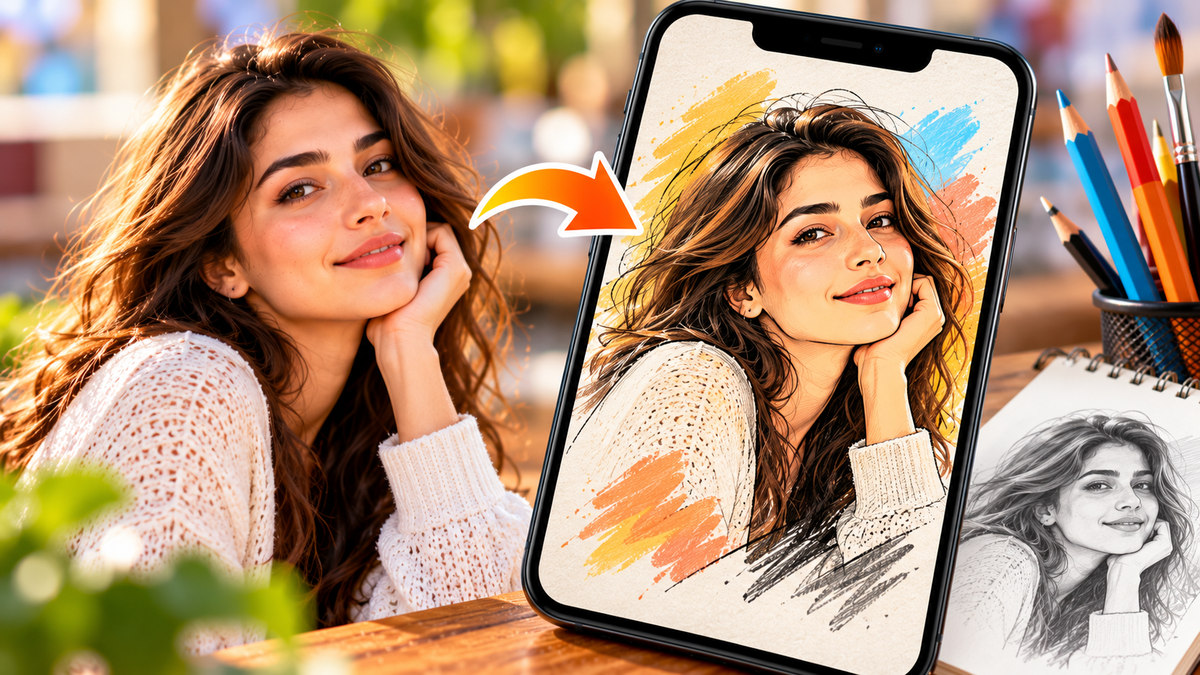
Have you ever wanted to turn an ordinary photograph into a beautiful pencil sketch, colorful cartoon, or digital painting? With today’s photo editing applications, you can transform your favorite images into creative artwork without knowing how to draw.
Whether you want to create an artistic profile picture, make a personalized gift, design a social media post, or experiment with different illustration styles, your smartphone can help you get started. Many applications use artificial intelligence, image-processing filters, and drawing effects to produce results in just a few steps.
However, choosing the right application can be confusing. Some specialize in realistic pencil sketches, others focus on cartoon portraits, and some provide a wide selection of painting effects. Certain features are free, while high-resolution exports, premium filters, or advanced AI tools may require payment.
In this guide, biographypadhe.com explores five apps that can turn photos into drawings: Prisma, ToonMe, Canva, Picsart, and Clip2Comic. You will learn what each application offers, which types of artwork it creates, and how to choose the best option for your needs.
How Do Apps Turn Photos Into Drawings?
Photo-to-drawing applications analyze an image and apply visual transformations that imitate artistic techniques.
A pencil-sketch effect, for example, emphasizes edges, contrast, and shading to create the appearance of a hand-drawn illustration. A cartoon effect may simplify facial features, change colors, and create smoother outlines. Painting filters can imitate brushstrokes, textures, and other artistic characteristics.
Some applications primarily use preset filters, while AI-powered tools can generate more substantial changes to the image.
The results depend on the original photograph, the selected style, and the application’s processing capabilities. A clear portrait with good lighting will often produce more recognizable results than a dark, blurry image.
It is also worth remembering that an automated effect is not the same as a drawing created entirely by hand. These applications are useful for creative editing, but the resulting artwork may contain visual changes that differ from the original photograph.
1. Prisma: Turn Ordinary Photos Into Artistic Paintings
Prisma is a photo editing application known for its collection of artistic filters. It can transform photographs into images inspired by painting and illustration styles, making it useful for people who want something more creative than a conventional photo filter.
The application supports various artistic effects, including styles that change the appearance of colors, textures, and outlines. Its available tools can help you experiment with different interpretations of the same photograph.
Main Features
- Artistic filters: Apply styles inspired by painting and other visual art techniques.
- Portrait effects: Give selfies and portraits a more artistic appearance.
- Creative adjustments: Refine the appearance of supported images using available editing controls.
- Multiple styles: Experiment with different effects to find the look you prefer.
- Sharing options: Save or share your edited results using supported features.
Prisma advertises more than 500 artistic filters and effects, although the availability of individual styles and additional tools can depend on the current version or subscription.
You can explore the official Prisma listing on Google Play or find it on the Apple App Store.
How to Use Prisma
Start by selecting a photograph from your gallery. Browse the available artistic styles and apply one that matches the effect you want.
If your version includes intensity controls or other adjustments, experiment with them until the result looks balanced. A subtle painting effect can preserve more of the photograph’s original appearance, while a stronger effect can produce a more dramatic transformation.
Save the finished image and compare it with the original before sharing or printing it.
Is Prisma Free?
Prisma is free to download, but it includes in-app purchases and paid options. Access to particular filters or advanced features may depend on your membership.
Review the current subscription details before purchasing a plan.
Best for: People who want artistic painting effects, creative portraits, and a variety of visual styles.
2. ToonMe: Transform Selfies Into Cartoon Portraits
ToonMe is designed to turn photographs, particularly selfies and portraits, into cartoon-style artwork.
Instead of focusing mainly on realistic pencil drawings, the application offers stylized portraits, illustrated appearances, and other creative transformations.
This makes it a useful option if you want a cartoon avatar for a social media profile or a playful illustration to share with friends.
Main Features
AI cartoon effects: Transform portraits into stylized illustrations using supported effects.
Portrait templates: Explore different cartoon and vector-inspired appearances.
Creative designs: Combine photographs with available layouts and artistic treatments.
Profile pictures: Create distinctive images for supported social media and messaging profiles.
Sharing options: Save or share your results through the tools available in the application.
The current official listing describes ToonMe as a cartoon and selfie editor with numerous styles.
You can find it on Google Play.
What Makes ToonMe Different?
ToonMe focuses on recognizable cartoon transformations rather than simply adding a black-and-white sketch effect.
For example, you could take a clear portrait and apply a cartoon style to create a more illustrated appearance. Different templates may produce different visual interpretations of the same face.
The results are generated automatically, so you do not need to draw outlines or paint individual details yourself.
Is ToonMe Free?
The application contains advertisements and in-app purchases. Some styles or additional features may require payment.
Check the available options before subscribing, and review the permissions requested when selecting photographs.
Best for: Cartoon selfies, illustrated profile pictures, and playful portrait artwork.
3. Canva: Turn Photos Into Sketches and Custom Designs
Canva is a graphic design platform that also provides tools for transforming photographs into sketch-style artwork.
Its photo-to-sketch feature allows you to upload an image and generate a drawing-like version. Afterward, you can continue editing the result by adding text, shapes, decorative elements, or other design components.
This makes Canva particularly useful when you want to do more than simply apply a drawing filter.
Main Features
- Photo-to-sketch conversion: Transform a photograph into a sketch using the available tool.
- Text and graphics: Add captions, headings, shapes, and other elements.
- Templates: Create designs for invitations, social media posts, and other projects.
- Image editing: Continue adjusting the artwork within Canva’s editor.
- Export and sharing: Download or share the finished design using supported options.
You can try the tool through Canva’s official photo-to-sketch page.
How to Turn a Photo Into a Drawing With Canva
First, upload your photograph using the photo-to-sketch tool. Follow the on-screen instructions to generate a sketch.
Review the result and regenerate it or make further adjustments when available. If you want to create a greeting card, poster, or social media graphic, open the result in the editor and add your preferred design elements.
When finished, preview the image and download it in a suitable format.
Is Canva Free?
Canva offers free design and editing features, but certain tools and content may require a paid plan. Access to the photo-to-sketch feature and related options can vary, so check the current conditions before relying on a particular feature.
Best for: Pencil-sketch effects, posters, greeting cards, social media images, and designs that combine illustrations with text.
4. Picsart: Combine Drawing Effects With Creative Editing
Picsart is an all-in-one photo and video editing application that offers artistic effects, AI-assisted tools, filters, and design features.
It is especially suitable for people who want to experiment with several editing styles rather than use only one drawing effect.
Depending on the current version and available features, you can combine artistic filters with background changes, stickers, text, and other creative elements.
Main Features
Artistic filters: Explore different looks that change the appearance of a photograph.
AI-assisted editing: Use supported AI features to create or modify visual content.
Background editing: Remove or change backgrounds using available tools.
Stickers and text: Add decorative elements, captions, or typography to artwork.
Collages: Combine multiple photographs in a single composition.
Photo and video tools: Edit different types of creative content within the same application.
Visit the official Picsart website to learn more about its current editing tools.
Why Choose Picsart?
Picsart is a good option if you enjoy making creative images that combine several effects.
For instance, you might transform a portrait into an illustration, add a colored background, and include decorative elements to create an image for social media.
You can also use the application to prepare collages or promotional graphics. However, if your only goal is to generate a simple pencil sketch, a dedicated sketching tool may be faster.
Is Picsart Free?
Picsart is free to download, with in-app purchases. Certain premium effects, AI capabilities, editing tools, and resources may require a paid subscription.
Review the current plan details before purchasing, particularly if you only need occasional photo-to-drawing conversions.
Best for: Creative editing, combined effects, collages, and images intended for social media.
5. Clip2Comic: Create Comic-Style Drawings on Apple Devices
Clip2Comic is a photo and video editing application designed to turn images into cartoons, comic-style artwork, caricatures, and sketch-like illustrations.
Unlike the more general-purpose editors in this guide, Clip2Comic is particularly focused on comic and cartoon transformations.
It is available for supported Apple devices, including iPhone and iPad, as well as compatible Mac systems.
Main Features
- Comic effects: Transform photographs into comic-style illustrations.
- Cartoon filters: Experiment with different illustrated appearances.
- Sketch effects: Create drawing-like results from photographs.
- Adjustable settings: Refine supported details, outlines, or colors.
- Creative frames: Use available decorative elements to create a comic-book presentation.
The official Clip2Comic App Store listing describes its cartoon, comic, sketch, and caricature features.
Who Should Use Clip2Comic?
Clip2Comic may be useful for people who want to create comic-inspired images from portraits, travel photographs, or everyday scenes.
For example, a family photograph could be transformed into a comic illustration for a greeting card, or a landscape picture could be given a poster-like appearance.
Some effects offer a more dramatic transformation than traditional pencil filters, so experiment with different styles until you find one that suits the subject.
Is Clip2Comic Free?
The application is free to download, with in-app purchases and a premium subscription for selected features. Availability also depends on device compatibility.
If you use an Android phone, choose an alternative such as Prisma, ToonMe, Canva, or Picsart rather than assuming Clip2Comic is available for your device.
Best for: iPhone and iPad users who want comic, cartoon, and sketch-style artwork.
Which Photo-to-Drawing App Should You Choose?
Each application has a different strength. Use this comparison to narrow down your choices.
| App | Main drawing style | Best for |
|---|---|---|
| Prisma | Artistic paintings and illustrations | Creative art filters |
| ToonMe | Cartoon and illustrated portraits | Selfies and avatars |
| Canva | Sketches and design compositions | Posters, cards, and social media content |
| Picsart | Artistic effects and mixed designs | Creative photo editing |
| Clip2Comic | Comics, cartoons, and sketches | Comic-style artwork on Apple devices |
All five can be useful, but they are not identical. If your priority is a realistic pencil drawing, start with a sketch-specific effect. If you want a colorful illustration, a painting or cartoon app may be more suitable.
Consider trying free features first and only paying for additional tools when they provide a clear benefit.
Tips for Getting Better Photo-to-Drawing Results
The quality of the original photograph has a major influence on the final artwork. A few simple practices can make the result more appealing.
Choose a clear photograph. An image with good lighting and a sharp subject provides more useful details for the application to process.
Avoid cluttered backgrounds. Busy backgrounds can make it difficult to distinguish the main subject from surrounding objects.
Experiment with different styles. One filter may work well for a portrait but produce an unattractive result for a landscape. Try several options before choosing your favorite.
Adjust the intensity when possible. Strong effects can remove recognizable details. A more moderate setting may preserve facial features and natural shapes.
Keep the original image. Save a separate copy of your edited artwork instead of replacing your original photograph.
Check the exported file. Zoom in and review outlines, edges, and facial details before printing or sharing the result.
If you plan to print the drawing, verify the export resolution and whether the app places a watermark on the image.
Are Photo-to-Drawing Apps Safe to Use?
Photo editing applications can be convenient, but it is worth checking how they handle personal images.
Some features process images on your device, while others may upload photographs to remote servers for processing. The privacy implications depend on the application and the feature you use.
Before uploading a sensitive photograph, review the app’s privacy policy and current store disclosures. Check whether images may be retained, shared, or used to improve its systems.
Be especially careful with private family photographs, children’s pictures, identification documents, and images containing information about your home or workplace.
Also review subscription conditions before enabling a free trial. Confirm whether the trial automatically renews and how to cancel it if you decide not to continue.
Frequently Asked Questions
Can I turn a photo into a drawing for free?
Yes. Several applications offer free downloads and selected drawing or artistic effects. However, advanced styles, high-resolution exports, or additional features may require payment.
Which app is best for turning a face into a cartoon?
ToonMe is specifically designed for cartoon-style portraits. Picsart also offers creative effects, while Clip2Comic provides comic-style transformations on supported Apple devices.
Can I turn a photo into a pencil sketch?
Yes. Canva offers a dedicated photo-to-sketch tool, while Clip2Comic provides sketch effects and Prisma offers artistic styles. The exact result depends on the available filter and the original image.
Do these apps work on Android and iPhone?
Prisma, ToonMe, Canva, and Picsart offer options across major mobile platforms. Clip2Comic is designed for supported Apple devices. Check the official listing for your device before downloading.
Will the result look exactly like a hand-drawn picture?
Not necessarily. Filters and AI tools imitate artistic styles, but the result may retain visible photographic details or introduce artificial textures. Try different styles and settings to find the appearance you prefer.
Final Thoughts
Turning photographs into drawings is an accessible way to explore digital creativity. Prisma offers painting-inspired effects, ToonMe focuses on cartoon portraits, Canva combines sketching with graphic design, Picsart provides a wide range of creative editing tools, and Clip2Comic specializes in comic-style artwork for Apple users.
The best choice depends on the style you want and how much control you need over the finished image. Start with a clear photograph, experiment with the available free effects, and preserve the original file so you can compare different versions.
Before paying for premium features, review the subscription terms and confirm that the application can produce the resolution and style you need.
At biographypadhe.com, our aim is to provide practical technology guides that help readers explore useful digital tools, understand their limitations, and make informed decisions about the applications they use.


