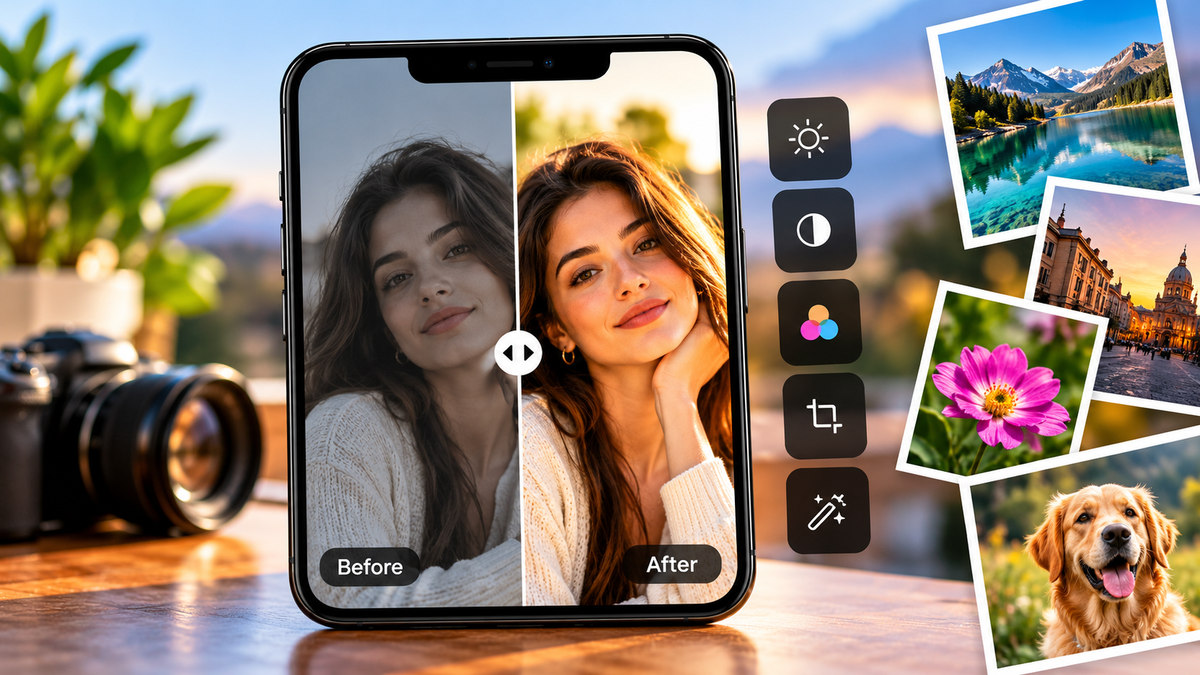
You do not always need an expensive camera or a professional photography studio to create attractive photographs. With a good smartphone and the right editing tools, you can improve your pictures, correct lighting problems, refine colors, and prepare images for social media, websites, and professional profiles.
Modern photo editing apps offer features that were once associated mainly with desktop software. You can adjust shadows, apply artistic presets, remove small distractions, enhance portraits, and create polished designs directly from your phone.
However, creating professional-looking photos involves more than applying a filter. The original lighting, composition, image quality, and editing choices all contribute to the final result. An editing app can improve a photograph, but it cannot always correct every problem caused by poor lighting or camera movement.
In this guide, biographypadhe.com explores five useful apps for creating professional-looking photos: Snapseed, VSCO, Adobe Lightroom, Picsart, and Canva. We will explain their main features, free options, and best uses to help you choose the right tool for your photography needs.
Why Use Apps to Create Professional Photos?
Photo editing applications make it easier to improve the appearance of an image without learning complicated desktop software.
For example, a photograph taken indoors may appear too dark, while a picture taken in bright sunlight can lose detail in the highlights. A suitable editing app allows you to adjust exposure, balance colors, and improve contrast so the image looks more polished.
These applications are useful for different purposes, including:
- Social media: Create attractive photographs for Instagram, Facebook, and other platforms.
- Professional profiles: Prepare clear, appropriately edited headshots for resumes, portfolio websites, and professional networking profiles.
- Business promotion: Improve product photographs and create marketing visuals.
- Travel photography: Enhance landscapes, architecture, and holiday pictures.
- Creative projects: Combine photographs with text, backgrounds, and graphic elements.
The best application depends on your objective. Someone who wants to correct lighting may prefer a traditional photo editor, while a content creator may need templates, stickers, and design tools.
Many applications offer free features alongside paid upgrades, so you can often begin editing without purchasing a subscription.
1. Snapseed: Detailed Photo Editing Without a Subscription
Snapseed is a photo editing application developed by Google. It provides a range of tools for adjusting colors, brightness, contrast, perspective, and other image properties.
Unlike applications that focus primarily on preset filters, Snapseed gives users more control over individual aspects of a photograph. Its interface supports both straightforward corrections and more advanced editing techniques.
Main Features
Light and color adjustments: Refine exposure, contrast, highlights, shadows, and color balance.
Selective editing: Adjust specific parts of an image rather than applying identical changes everywhere.
Healing tools: Remove certain small distractions, such as an unwanted object in the background.
Creative filters: Experiment with black-and-white effects, vintage styles, and other artistic treatments.
Perspective correction: Straighten horizons and correct certain distortions in photographs of buildings.
RAW support: Edit supported RAW photographs as well as standard image files.
The current Snapseed Google Play listing describes more than 30 tools and filters and states that the Android version has no subscriptions, in-app purchases, advertisements, or watermarks. Availability and features can differ by platform.
How Snapseed Helps Create Better Photos
Imagine you have taken a photograph of a person against an attractive background, but the face appears too dark. You can adjust the brightness and shadows, refine the colors, and make selected changes without unnecessarily altering the entire image.
For landscape photography, perspective correction and tonal adjustments can help make the composition look more balanced.
The key is to make changes gradually. Increasing sharpness or contrast too much can create unnatural edges and reduce the quality of the photograph.
Best for: Beginners and photography enthusiasts who want extensive editing controls without recurring subscription costs.
2. VSCO: Create Stylish Photos With Artistic Presets
VSCO is a photography and editing platform known for its film-inspired presets and creative color treatments. It is especially useful for people who want their photographs to share a consistent visual style.
A preset applies a combination of adjustments to an image, providing a convenient starting point. You can then refine the result using the other editing tools available in your version of the app.
Main Features
- Artistic presets: Apply different visual styles with minimal effort.
- Color adjustments: Refine exposure, saturation, contrast, and other supported settings.
- Film-inspired effects: Create vintage looks, softer colors, or more distinctive photographic styles.
- Reusable edits: Save and reuse editing combinations where supported.
- Creative community: Explore photographs and find inspiration from other users.
Learn more through the official VSCO website.
When Should You Use VSCO?
VSCO can be helpful when you want photographs from different occasions to look visually consistent.
For example, if you are creating a collection of travel photographs, you might choose a slightly warm style and use similar adjustments across the images. This can help the collection feel more organized when published together.
For portraits, use presets carefully to keep skin tones natural. A filter that looks attractive on a landscape may not suit a photograph of a person.
Is VSCO Free?
VSCO offers a free Starter membership with a selection of presets and editing tools. Additional filters and advanced features are available through paid memberships. Its official website provides current membership details.
Best for: Creative portraits, travel photography, and users who prefer preset-based editing.
3. Adobe Lightroom: Improve Lighting and Color With Precision
Adobe Lightroom is a photo editing application designed for users who want more control over exposure, color, and image details.
It is particularly useful when the photograph needs careful adjustments rather than decorative effects. The mobile version provides tools for casual editing as well as more advanced photographic workflows.
Main Features
Exposure control: Adjust overall brightness, highlights, shadows, and contrast.
White balance: Correct color casts to make the image appear more natural.
Color editing: Refine saturation and individual color tones using supported controls.
Presets: Apply ready-made styles and modify them to suit the photograph.
Selective adjustments: Edit particular areas of an image where supported.
Advanced tools: Some plans include additional AI-assisted features, masking tools, cloud storage, and synchronization.
Explore Adobe’s official Lightroom page for current features and membership information.
How Lightroom Can Improve a Photograph
Suppose you take a landscape photograph at sunset. The sky may look bright, while the foreground appears too dark. With Lightroom, you can adjust highlights and shadows independently to balance the scene.
You can also correct color casts that make indoor photographs appear too yellow or blue.
For people who regularly edit large numbers of images, presets and supported synchronization features can help maintain a consistent style across a photography collection.
Is Lightroom Free?
Lightroom is free to download, and its mobile version offers basic editing tools without requiring every user to purchase a subscription. Certain advanced features and services require paid access.
Check the current plan before subscribing, especially if you need a specific editing tool.
Best for: Detailed photo correction, professional-style color editing, and photographers who want more precise control over their images.
4. Picsart: Create Photos With Artistic Effects and AI Tools
Picsart combines photo editing with graphic design and creative effects. It is a useful choice when you want to transform an image beyond basic adjustments.
The application provides tools for editing photographs, adding stickers and text, creating collages, and using supported AI-assisted features.
Main Features
- Photo filters: Apply creative effects to change the visual style.
- Background editing: Remove or change backgrounds with supported tools.
- Retouching: Adjust selected image elements and improve the appearance of photographs.
- Text and stickers: Add captions, graphics, and decorative elements.
- Collage creation: Combine several images in a single design.
- AI editing: Explore available tools for removing distractions or modifying visual elements.
You can review the current tools through the official Picsart website.
Who Should Use Picsart?
Picsart may suit content creators and social media users who want to experiment with creative visual effects.
For example, you could edit a portrait, remove an unwanted background, add a new color scheme, and place the result in a promotional graphic.
However, creative transformations are not always appropriate for professional photographs. For a resume or business profile, it is generally better to preserve your recognizable appearance and avoid excessive retouching.
Is Picsart Free?
Picsart provides free editing tools, but some advanced features, AI capabilities, effects, and resources require a paid plan.
Review the available features and subscription terms before paying for a tool you may use only occasionally.
Best for: Creative portraits, social media graphics, collages, and images that need additional visual effects.
5. Canva: Create Professional-Looking Photos and Designs
Canva is a graphic design platform that also offers photo editing tools. It is particularly useful when you want to combine a photograph with text, backgrounds, illustrations, or a ready-made layout.
Instead of editing an image in one app and designing a graphic in another, you can perform both tasks in the same workflow.
Main Features
Photo adjustments: Modify images using available brightness, color, and filter controls.
Templates: Start with layouts for social media posts, invitations, presentations, and promotional graphics.
Text and graphics: Add headings, captions, shapes, and other visual elements.
Background editing: Use supported tools to remove or replace backgrounds.
Collage layouts: Combine multiple photographs in a coordinated design.
Online and mobile editing: Work through a compatible browser or mobile app.
Learn more from Canva’s official photo editor.
What Can You Create With Canva?
Canva works well for projects where presentation matters as much as the photograph itself.
For example, a small business owner could add a product image to a promotional template, include a headline, and create a graphic suitable for a website or social media campaign.
You could also prepare a professional portfolio cover, an event invitation, or a blog image using the available layouts.
Remember that a well-designed graphic does not automatically make a photograph suitable for every professional purpose. A formal profile picture, for example, may be more effective with a simple background and minimal editing.
Is Canva Free?
Canva provides a free editing and design experience, while certain premium templates, graphics, and advanced tools require a paid plan.
Check the current feature availability before relying on a premium element for a project you intend to complete using only free tools.
Best for: Marketing visuals, professional presentations, social media designs, and photographs that need text or graphic elements.
Comparing the Five Photo Editing Apps
| App | Main strength | Best use |
|---|---|---|
| Snapseed | Detailed editing controls | Improving photographs naturally |
| VSCO | Artistic presets | Creating a consistent visual style |
| Adobe Lightroom | Lighting and color correction | More advanced photo editing |
| Picsart | Creative effects and AI tools | Artistic images and social media |
| Canva | Design templates | Promotional graphics and profile visuals |
These applications serve different purposes, so there is no universal winner. If you mainly need to correct lighting, Snapseed or Lightroom may be a suitable starting point. If you prefer presets, try VSCO. If you want creative effects or designed layouts, consider Picsart or Canva.
Start with the free features and choose a paid plan only when the additional tools provide a clear benefit.
How to Take Professional-Looking Photos With Your Phone
Editing can improve a photograph, but good results begin with how the image is captured.
Use Soft, Even Lighting
Natural light from a window or a shaded outdoor area can create a flattering appearance without strong shadows. Avoid placing the subject directly in harsh sunlight when possible.
For portraits, make sure the face is clearly visible and that the light does not create distracting highlights.
Keep the Camera Steady
Camera movement can reduce sharpness. Hold your phone securely, use both hands, or rest it on a stable surface when necessary.
If your phone includes a timer, use it to reduce movement when taking a photograph.
Simplify the Background
A cluttered background can distract from the subject. Choose a setting that complements the photograph and keeps unnecessary objects out of the frame.
A simple background can be especially helpful for profile pictures, product images, and professional headshots.
Compose the Photograph Carefully
Give the subject enough space in the frame and check that important details are not cut off. Keep the horizon straight in landscape photographs and avoid awkward cropping around faces.
Edit Subtly
Start with basic corrections to brightness, white balance, and contrast. Add filters only when they improve the image.
Excessive smoothing, artificial colors, and heavy retouching can make a photograph look less natural.
Frequently Asked Questions
What is the best app to create professional photos for free?
Snapseed is a strong free option for editing photographs, while Lightroom provides additional capabilities through its paid plans. Canva and Picsart are useful when you want to create designed images rather than simply correct photographs.
Can I make professional-looking photos without a DSLR camera?
Yes. A modern smartphone can capture high-quality photographs for many everyday, social media, and business purposes. Lighting, composition, and editing technique often make a substantial difference, although some professional assignments may require specialized equipment.
Which app is best for professional profile pictures?
Snapseed and Lightroom can help correct lighting and colors while preserving a natural appearance. Canva may be useful when you need to place a suitable photograph in a designed profile banner or portfolio layout.
Can AI make my photos look professional?
AI-assisted tools can help with certain tasks, such as removing distractions or modifying backgrounds. However, the results depend on the tool and original photograph. Review AI-generated changes carefully, particularly when preserving an accurate appearance is important.
Do I need a paid photo editing subscription?
Not necessarily. Free tools can be sufficient for basic editing and many creative projects. A paid subscription is worth considering only when it provides specific capabilities that you regularly need.
Final Thoughts
Creating professional-looking photos on your phone is more accessible than ever. Snapseed offers extensive editing controls, VSCO provides artistic presets, Lightroom supports detailed lighting and color correction, Picsart encourages creative transformations, and Canva combines photographs with graphic design.
The best results usually come from combining good photography habits with thoughtful editing. Use suitable lighting, keep the composition simple, correct basic problems, and avoid changing the image more than necessary.
Before downloading or purchasing an application, review its available features and privacy practices. Keep original copies of important photographs and be careful when uploading private images to online editing services.
At biographypadhe.com, our goal is to provide practical technology guides that help readers discover useful digital tools, improve their photography skills, and make informed decisions about the applications they use.


